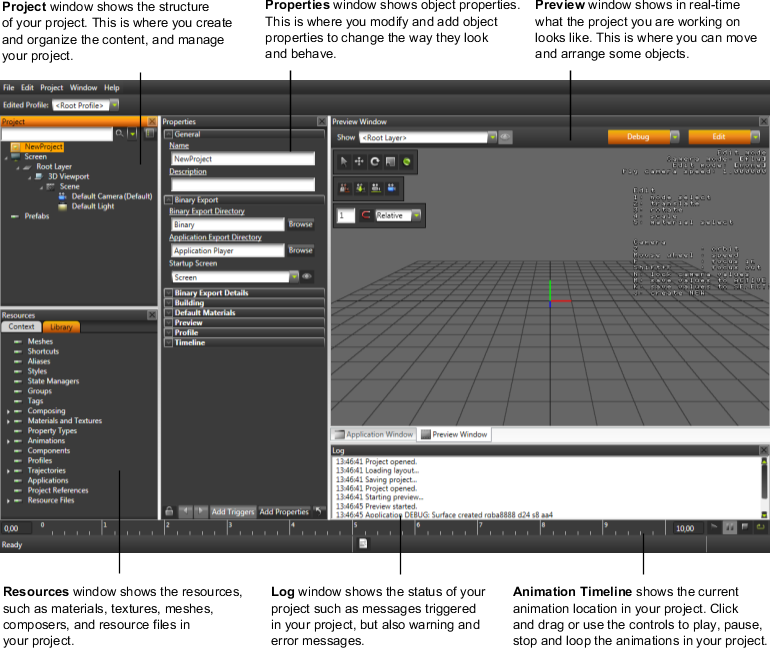
When you start a new project, Kanzi Studio workspace looks like this:
Since Kanzi Studio is neither a 3D modeling nor an image creation tool, you need to import 3D models and images you created with the tools of your choice. See Importing.
Once you import the content, you have to create Kanzi objects that present the content in your Kanzi application. That is when you can start building the structure and logic of your Kanzi application. For example, if you want to create a rotating user interface:
Any changes you make to your Kanzi application, you can see in real-time in the Preview. See Previewing content.
When creating user interfaces, content rarely fits your requirements out-of-the-box. In Kanzi Studio you can set the content properties to meet your exact requirements in the Properties. See Editing content.
When you are satisfied with how your application looks and works, build and deploy your application on Windows, Android, and iOS.